Is this clip actually Log? Your camera already knows
Here's a shoot that probably sounds familiar. You started the day in Log. Somewhere in the middle you switched to a standard profile — maybe you handed the camera to someone, maybe you were in a hurry and grabbed a quick shot. Two weeks later you drop the whole card on a timeline, apply your Log conversion to everything, and about a third of the clips come out looking wrong.
Now you have to find them. And there is no good way to do it.
They all look the same
Flat footage looks flat. That's the point of it. Two clips sitting next to each other in Finder — one Log, one not — give you nothing to go on. The thumbnails look similar, and the file names don't say anything about it either.
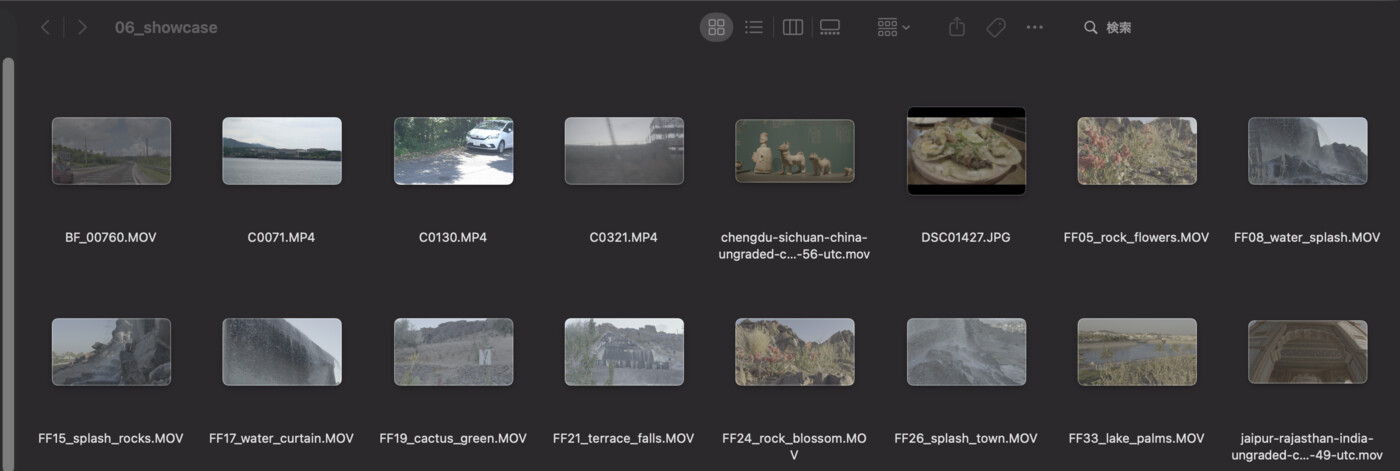
So people fall back on guessing: scrub through, apply the conversion, see if it looks right, undo. On a handful of clips that works. On a card full of them it turns into an afternoon.
Your camera wrote it down
The thing is, this information is not missing. When a camera records in a Log profile, it puts that fact inside the file. Not in the picture — in the part of the file that describes how the picture was made.
So why doesn't anything tell you?
Because every manufacturer picked a different place to write it.
There is no shared standard for "this clip is Log." Sony puts it in one place in its own format. Panasonic uses another. Apple invented a dedicated field for Apple Log rather than reusing the existing one. Some cameras hide the marker deep enough in the file that you have to go looking for it specifically — on one camera I tested, the identifying block sits about 164 MB into the file, so anything that only peeks at the beginning will never find it.
General-purpose apps don't go hunting through all of that. QuickTime doesn't. Finder doesn't. They read the standard fields, find nothing that says "Log," and move on. The information is there; nobody looks.
Which is why the answer is always "install their app"
Ask this question in any editing forum and you'll get the same answer within a few replies: download the manufacturer's own utility and open the clip in that.
It works. Of course it does — the manufacturer knows where the manufacturer put it. But look at what that actually asks of you:
- A separate app, outside your edit, per camera brand you shoot on
- Open a clip, read the setting, close it, open the next one
- Remember the answers, or write them down somewhere
For one clip that's fine. For the thirty clips you can't identify by eye, it's an hour of clicking. And you have to do it again on the next shoot.
The problem isn't knowing how. It's doing it 200 times
This is the part that gets missed when people answer the question. The advice is technically correct and practically useless, because the difficulty was never understanding where to look. It's that checking one clip and checking a card full of clips are completely different jobs, and only the first one has a good answer.
What you actually want is not a procedure. It's for the answer to already be on screen, on every clip, before you start.
What that looks like
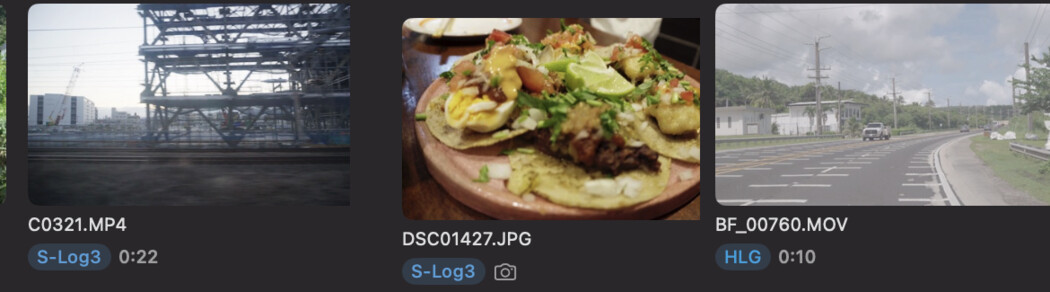
This is why Divecut puts the format on the clip itself. You open a folder and every clip carries a badge: S-Log3, Apple Log, V-Log, HLG, and so on — read out of the file, not guessed from the picture.
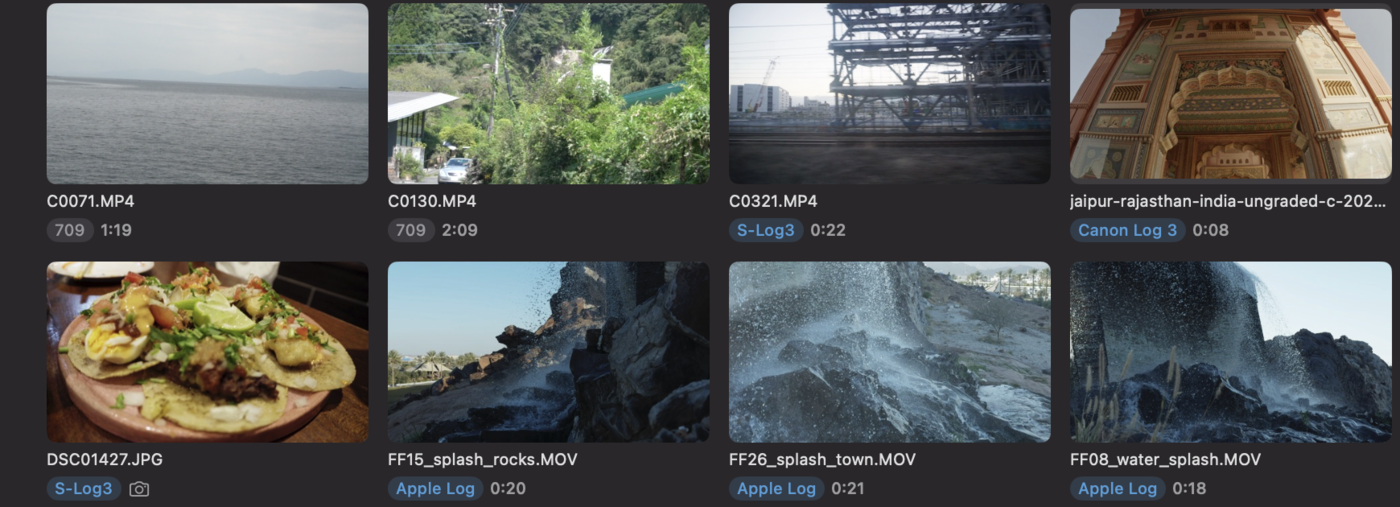
When a camera genuinely doesn't record it, you get a badge saying so rather than a confident guess. That matters more than it sounds: a wrong guess puts you back in the mess you started with, hunting for the clips that came out broken. You tell it once what that camera shoots, and it remembers for every clip from that camera afterwards.
Then the sorting problem disappears, because there's nothing to sort. The clips that need a Log conversion are already labelled, and so are the ones that don't.
Divecut is a footage browser for macOS and iPad. It shows Log clips in the colour you shot them for, lets you search them in plain words, and hands your selects to DaVinci Resolve with the Log intact. See everything it does.